.png)
Configuration: Impact Drivers
1. Access Impact Drivers Settings
- Navigate to the Settings section in the top right
- Select Impact Drivers to begin the setup.
2. Add New Impact Driver 0:12
- Choose to add an impact driver either from the library or create a new one.
3. Populate the relevant Impact Driver fields 0:25
- Impact Driver Name (e.g., QBR Completed).
- ImpactAarea (e.g., Business Success).
- Point value (e.g., 2 points).
- Defintion: Clearly define what it means for the impact driver to be completed (e.g., QBR with customer completed with at least one senior stakeholder present).
- Link enablement (optional)
- Playbook (optional - recommended when using account planning)
- Description (optional - recommended when using account planning)
5. Set Up Status Changes 2:08
-
Impact Driver transitions determine how and when the status of an Impact Driver changes, which in turn triggers related automations (e.g., scoring, notifications, reporting updates).
There are three types of transitions:
-
⏰ Time-based transitions
Used when an Impact Driver is closed based on time logic.
Example: A driver can be “won” once per month or quarter — this transition resets automatically after the defined period.
-
⚙️ Property-based transitions
Triggered by changes in specific HubSpot properties.
Example: When a property like Renewal Status or Customer Health Score changes, the related Impact Driver is automatically updated.
-
🤖 Contextual (AI-based) transitions
Powered by ImpactPilot AI, these analyze all your HubSpot data — including emails, notes, calls, transcripts, and properties — to detect when an Impact Driver was achieved.
- Ensure that the definitions and prompts are clear to avoid incorrect transitions.
- Start with manual transitions to monitor AI performance before switching to automatic.
-
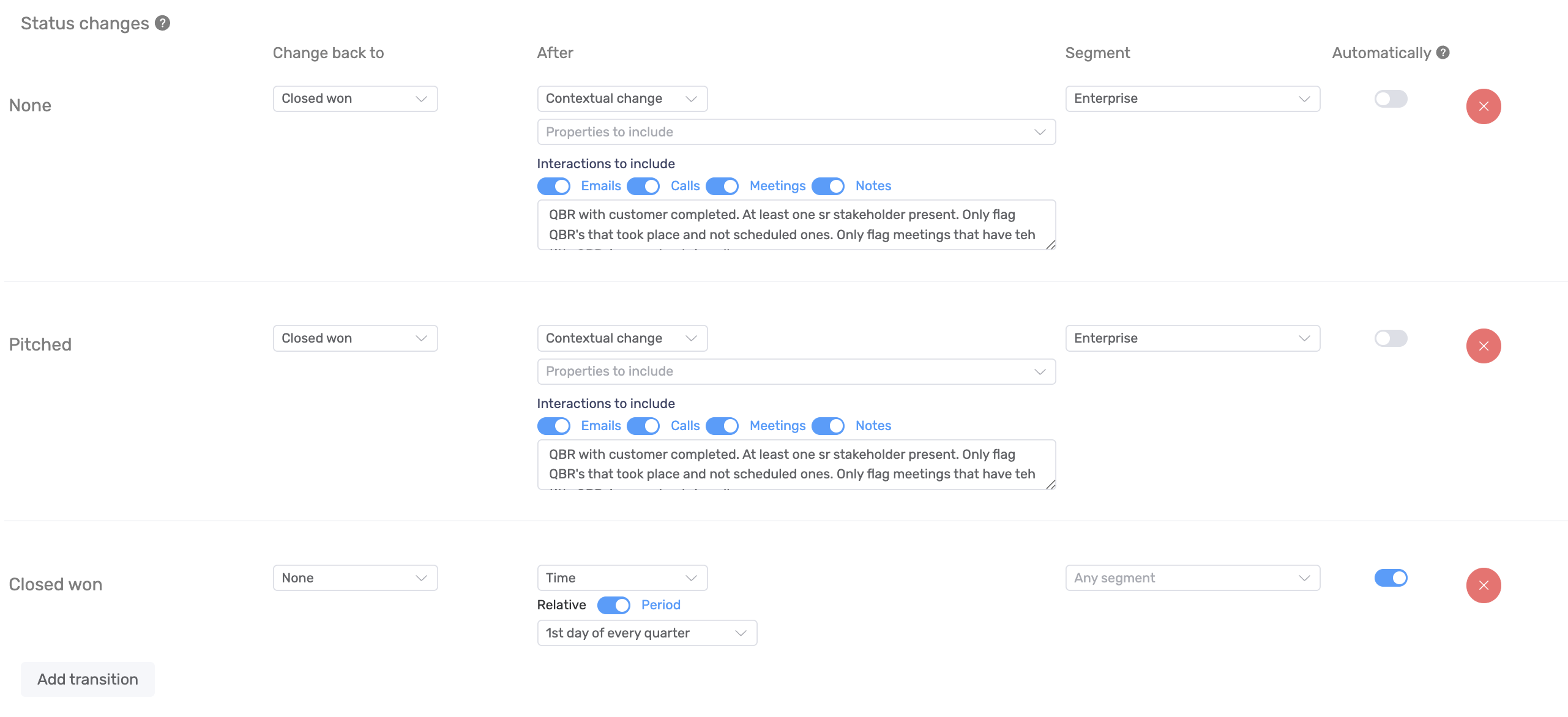
⚙️ Setting Automatic vs. Manual Transitions
When creating or editing an Impact Driver, you can decide whether its status transitions happen automatically or manually.
-
Automatic transitions:
The Impact Driver status changes instantly when the triggering event occurs (e.g., a property changes or a time period resets).
→ Ideal for clear, objective events.
-
Manual transitions:
The Impact Driver status only changes after a CSM reviews and confirms it.
→ Useful when human validation is needed to avoid false positives.
💡 Recommended setup
-
Time-based transitions → ✅ Automatic
These are predictable and safe to automate.
-
Property-based transitions → ✅ Automatic
Based on clear HubSpot property changes, so automation works reliably.
-
Contextual (AI-based) transitions → ⚠️ Manual (recommended initially)
Let CSMs first review how these detections behave before switching to automatic. This helps fine-tune accuracy and confidence in the AI results.
9. Save Impact Driver
- Save the newly created impact driver to finalize the setup.